At a glance…
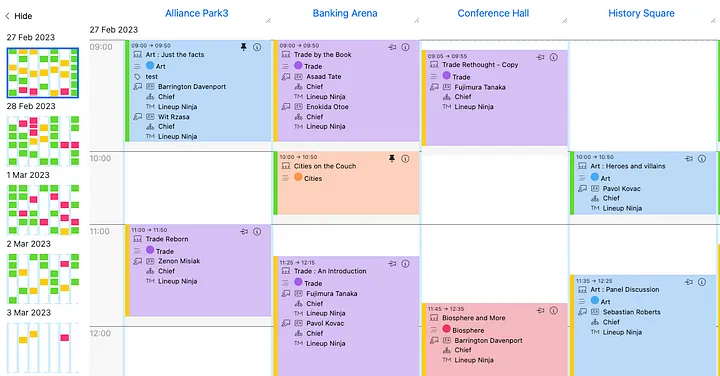
- Visible Speaker/Session Data — You can now change the default data shown to include any speaker/session data on the Agenda Planning Board view
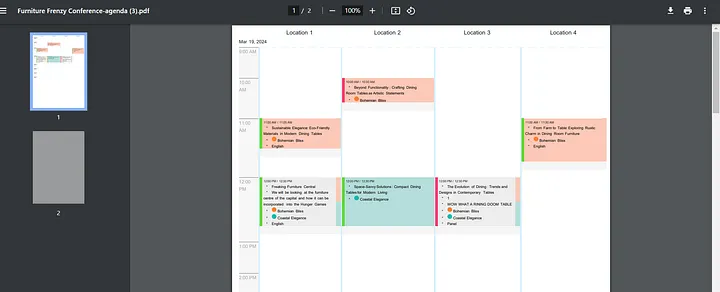
- Printing Your Agenda — You can change what Speaker/Session data appears on your pdf print out of the Agenda by changing what is visible on the board
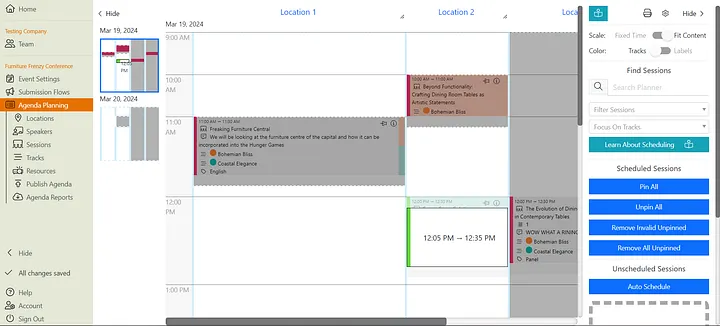
- Mode Toggle — Scale: Fixed Time / Content — The new mode toggle allows you to change the view of your Board depending on whether you want to have fixed time spaces or if you want to expand/contract the time to fit the content
- Resizing Location Column — You can now resize each Location column on the Agenda Planner
- Search Agenda — You can now search all displayed text on the Agenda Planning Board
- Changes to drag & drop — These include quicker load time for large events, visible time slots when dragging and dropping and view on the planner thumbnail
- Drop In Sessions — Wednesday 21 February @ 11am & Friday 23 February @ 11am (meeting links at the end of the release notes)
- Updated Documentation — To view the updated documentation on the above changes, please follow this link
We are getting the first release note to you guys early in the year as we have an exciting new change… The new and improved Agenda Planning Board!
There are several key features that we want to point out to you.
Visible Speaker/Session Data
You can now include any Speaker/Session data you need on your Agenda Planning Board. This can now be:
For sessions
- Session Time
- Session Name
- Session Code
- Session Description
- Session Notes
- Session Tracks
- Session Labels
- Session Resources
- Custom Fields for ‘Sessions’
Speakers — Can be toggled on / off
- Speaker Name
- Speaker Position or Job Title
- Speaker Company
- Speaker Country
- Speaker Role
- Speaker Labels
- Speaker Bio
- Custom Fields for ‘Speakers’
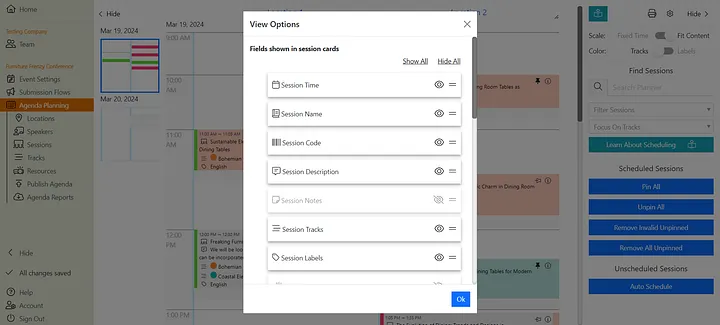
To do this, navigate to the Agenda Planning Board and click the settings wheel in the top right-hand corner. From here, you can click the eye icon to hide/unhide different speaker/session fields.
Printing Your Agenda
Once you have configured the view of your Agenda Planning Board depending on what data you want to see, you can now save as a pdf and print. This is particularly helpful if you want to print different versions of your agenda for different viewers (e.g. AV team, moderators, hosts). We have included a handy ‘reset’ button for you to revert back to the normal Agenda Planning settings.
Mode Toggle — Scale: Fixed Time / Fit Content
The new mode toggle allows you to change the view of your Agenda Planning Board depending on whether you want to have fixed time spaces or if you want to expand/contract the time to fit the content
Fixed Time = Fixed Time is the Agenda Planning Board you are used to. This is where the gaps in which you can schedule content remains the same size, regardless of the content that has been configured to appear in there. With the new Agenda Planning Board, you will see a scroll bar on the right hand side of each session that allows you to view the content by scrolling.
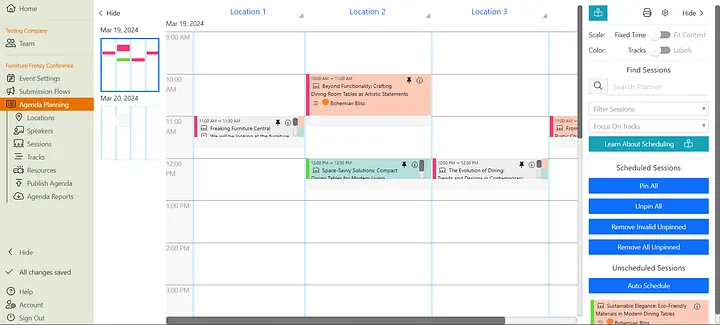
Fit Content = Fit Content is a new addition to the Agenda Planning Board and expands the scheduled session to fit the content that you have configured to appear there. This means you will always be able to view exactly the data you need to, without clicking into the session.
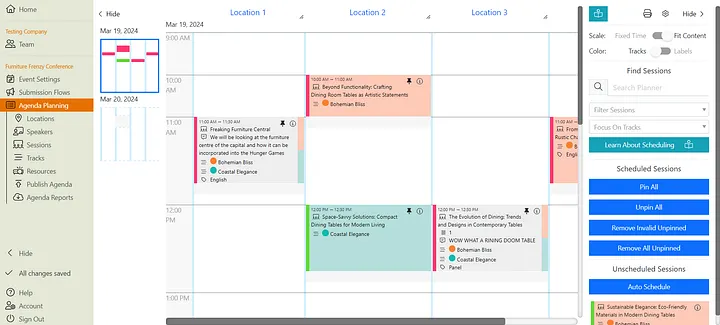
To change between these views, navigate to your Agenda Planning Board and toggle Fixed Time / Fit Content.
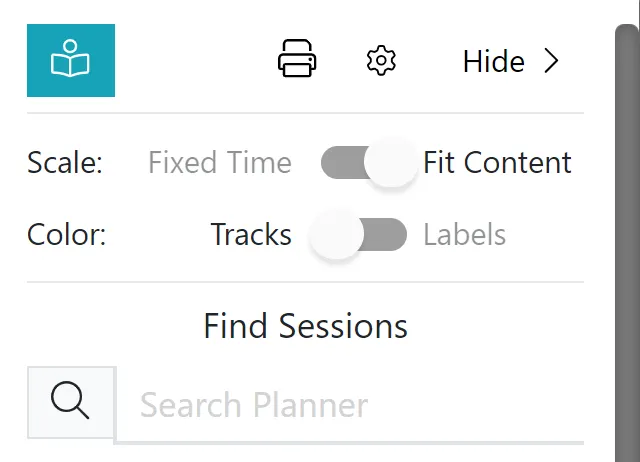
Resizing Location Column
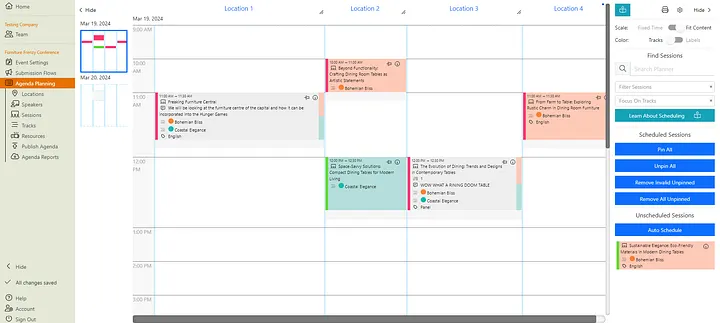
You can now resize each Location column on the Agenda Planner! Again, we have included a handy reset button in the Agenda Planning settings.
Search Agenda
Another exciting feature to make it easier to navigate around your Agenda Planning Board is that you can now search all displayed text within the Agenda Planning Board, including Speaker and Session data, Custom Fields, Labels, Resources and Tracks.
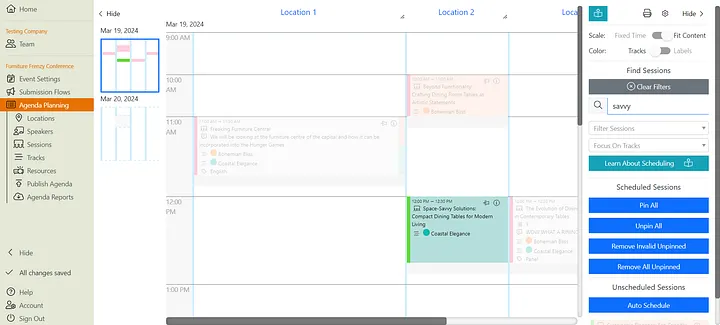
Simply type into the search bar in the top right corner to search.
Changes to drag & drop
There have been several changes to the drag & drop:
- We have updated how this functions to stop the lag between picking up an item and dropping it
- Drag & drop now shows the time when moving for easy viewing
- You can see where you are dragging an item within the thumbnail view of the Agenda Planning Board
Grab Bag — Other changes and useful features:
- Scheduled session colours can be toggled between ‘Focus on Tracks’ and ‘Focus on Labels’ in the panel on the right of the Agenda Planning Board
- If you hover over the information icon on each session, it will reveal full session/speaker details, as well as any scheduling contraints that have not been met
- In your account settings, you can switch between drag and drop & pick and place when scheduling your sessions, depending on which works for you!
Drop In Sessions
As part of the launch of the new Agenda Planning Board, we will be holding two drop in sessions to answer any questions you may have!
- Wednesday 21 February @ 11am-12pm UK / GMT— Meeting link here
- Friday 23 February @ 11am-12pm UK / GMT — Meeting link here
Finally, we will be at International Confex on the 28 & 29 February 2024 (Stand ETL12). Be sure to pop over and say hello!